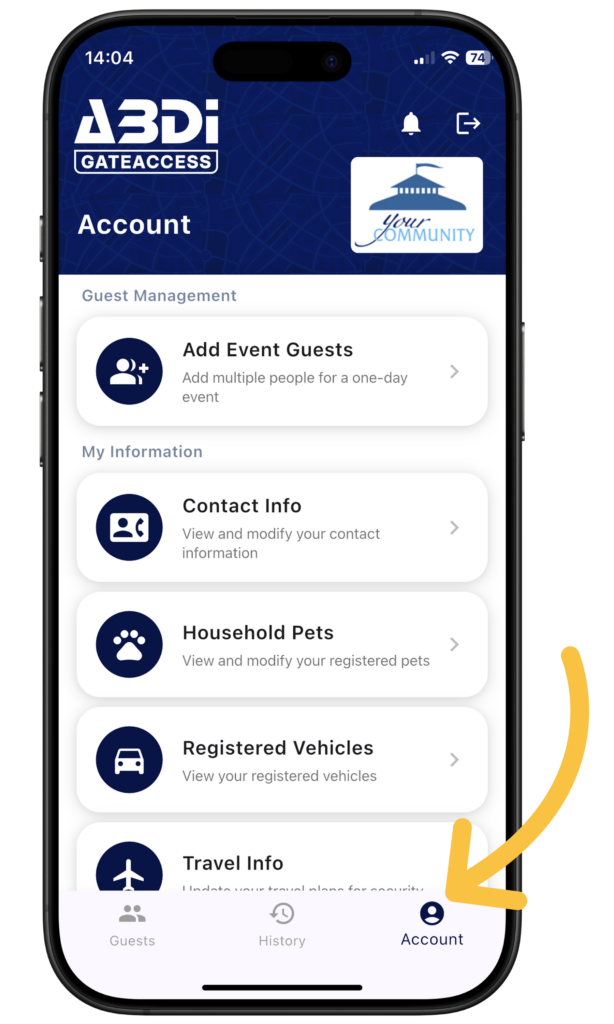
Account Page #
The Account Page is used to configure information related to you and your account.
- Please note that the screenshots in this guide may show different features than you see in your app. Community managers may choose to enable or disable various features. For example, if a community chooses to disable the Emergency Contacts area of the app, it can do so on a community-wide basis.
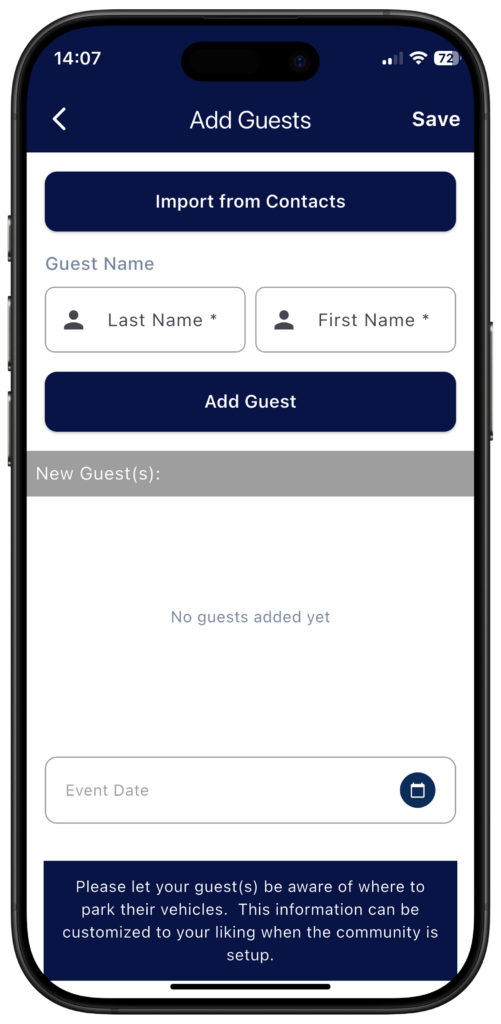
Add Event Guests #
This page allows you to quickly add multiple guests by manual entry or importing from your contact list.
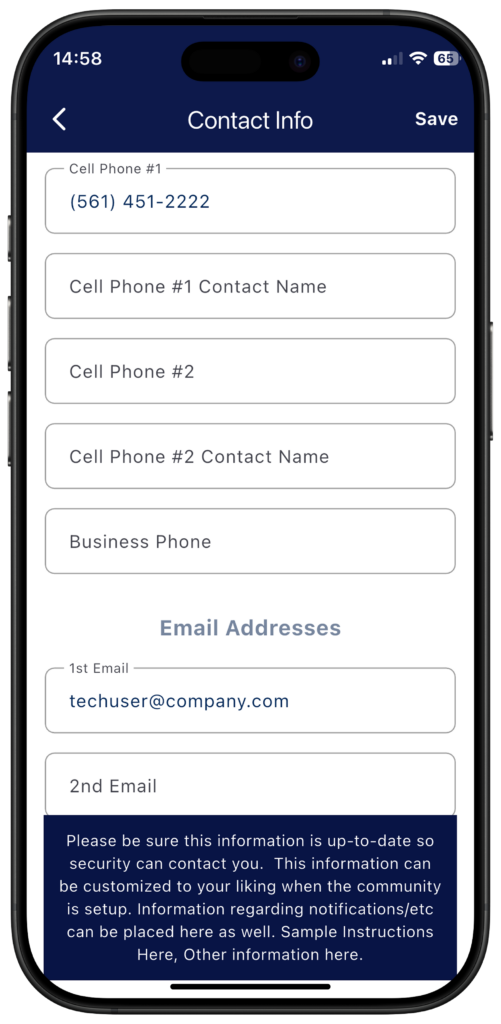
Contact Info #
Here you are able to view and update your phone numbers and email addresses on file.
Use the Save button in the upper right corner to store any changes you have made.
Household Pets #
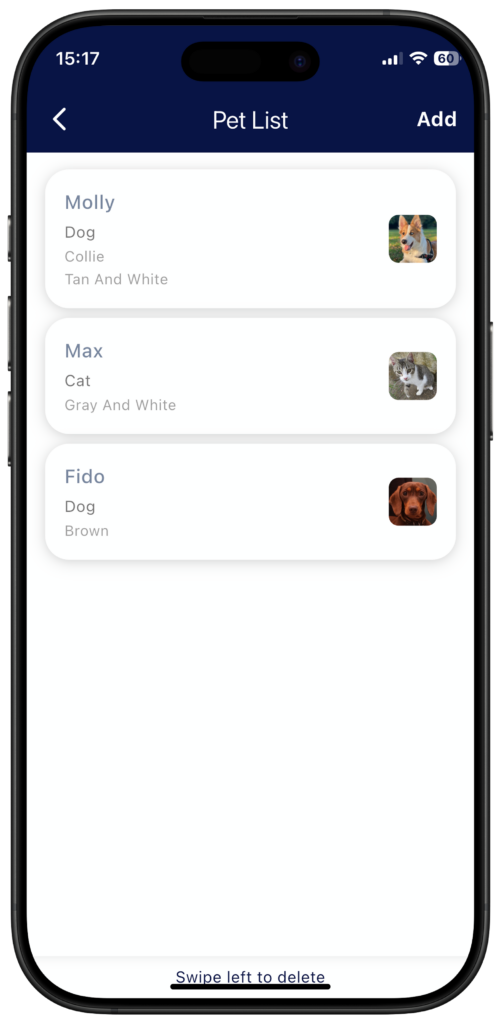
Use this page to store pictures and information about your pets.
To view the list of pets, click on the Household Pets page.
To delete a pet, swipe the pet tile to the left and click Delete. To enter a new pet, click on Add on the upper right corner of the screen.
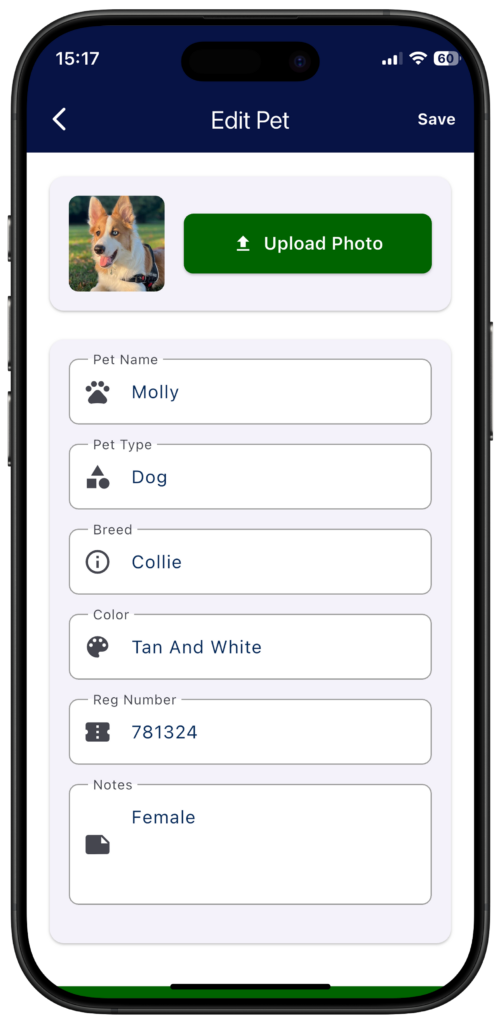
To update the pet’s information, select it from the list, and make the desired changes. To upload a picture, click on the Upload Photo button. When done, click on Save on the upper right corner.
Registered Vehicles #
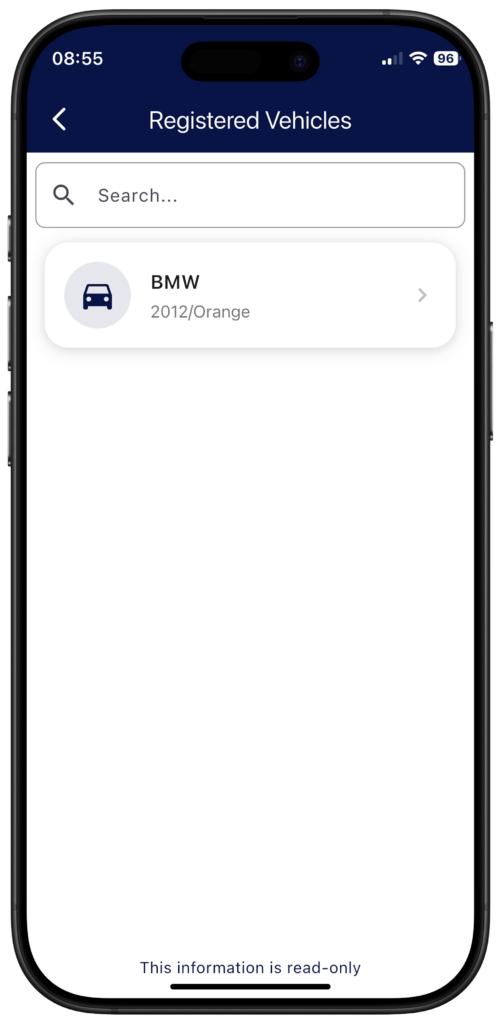
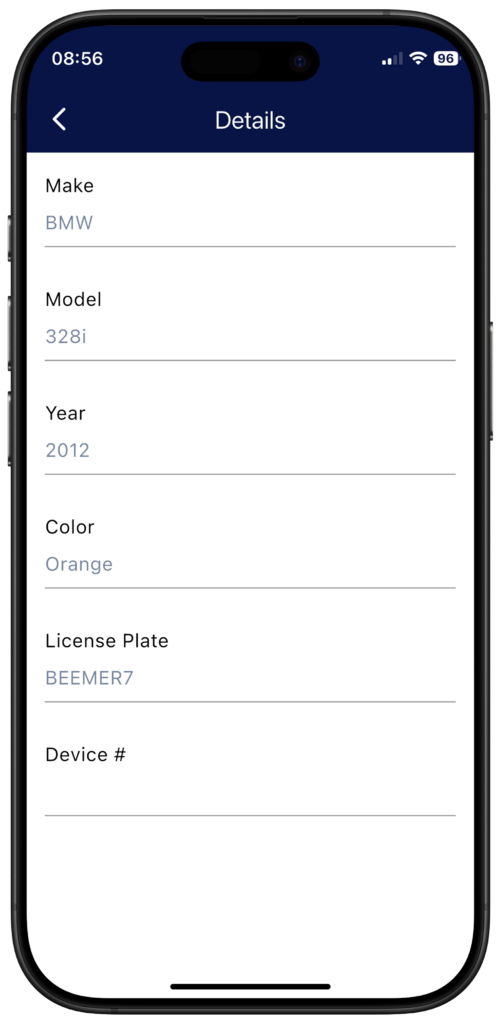
This page provides a read-only view of the vehicles registered to your account by your community manager.
Travel Info #
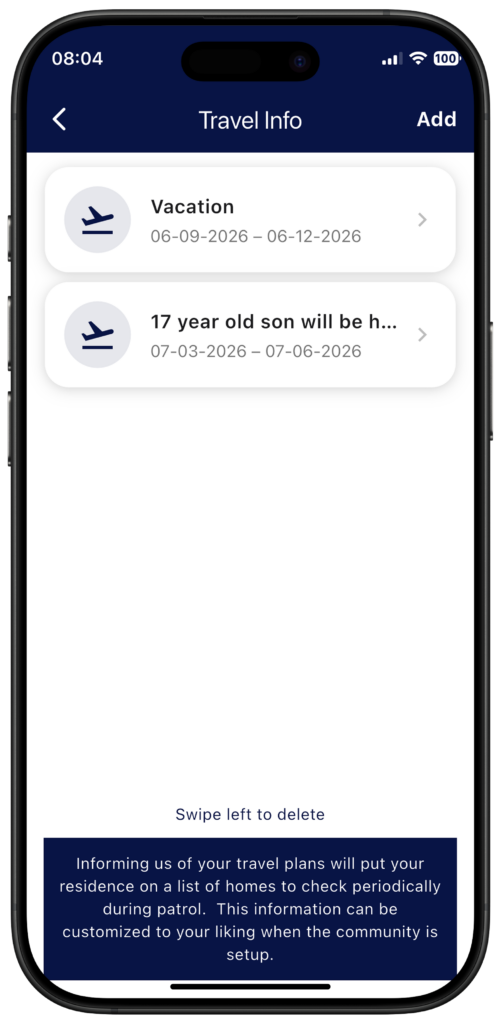
Use the Travel Info page to manage your vacation and travel information so that security is alerted when someone attempts to enter during the time of the vacation.
To view the list of vacations, click on the Travel Info tile. To delete a trip, swipe it left and click Delete. To add a vacation, click on Add on the upper right corner of the screen.
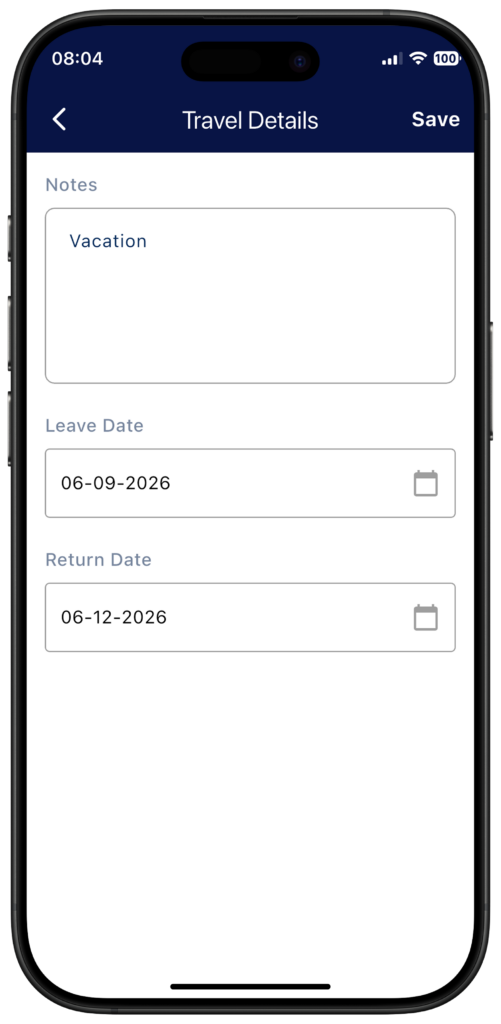
To update an existing trip’s information, select it from the list and make the desired changes. When done, click on Save on the upper right corner.
Emergency Contacts #
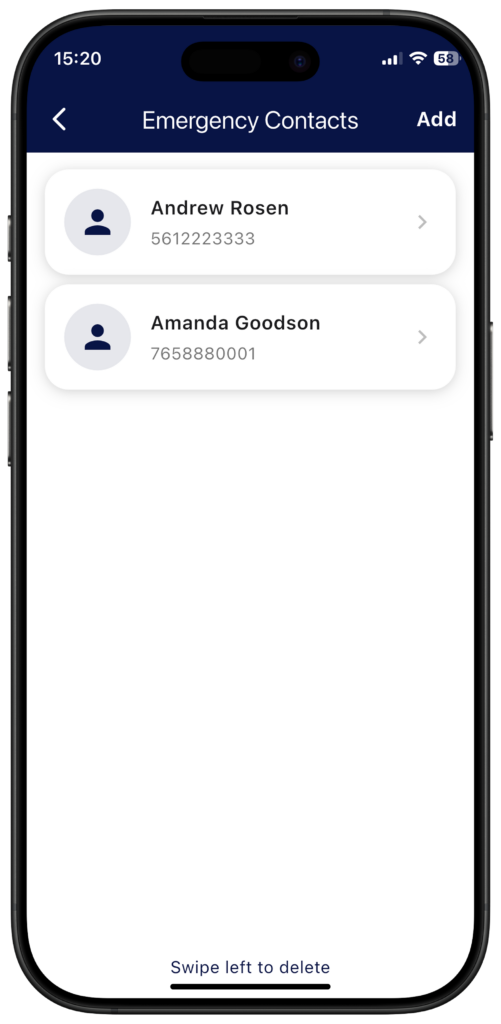
Use this page to maintain your emergency contacts so that security can contact someone in case of an emergency when you are not available.
To view the list of emergency contacts, click on the Emergency Contacts area from the main menu. To delete a contact, swipe it left and click Delete. To add a contact, click on Add on the upper right corner of the screen.
To update a contact’s information, select it from the list and make the desired changes. When done, click on Save on the upper right corner.
Community Info and News #
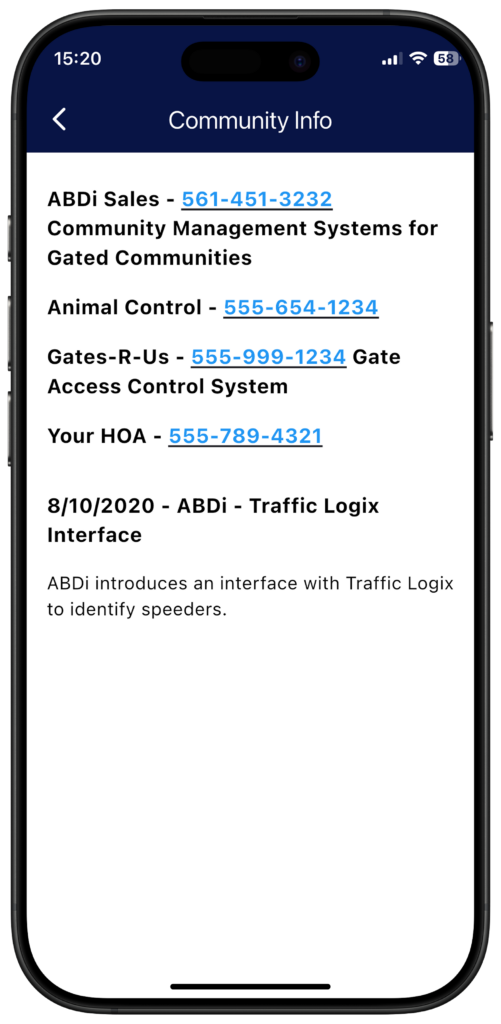
This page shows information provided by your community manager to all residents.
Community Documents #
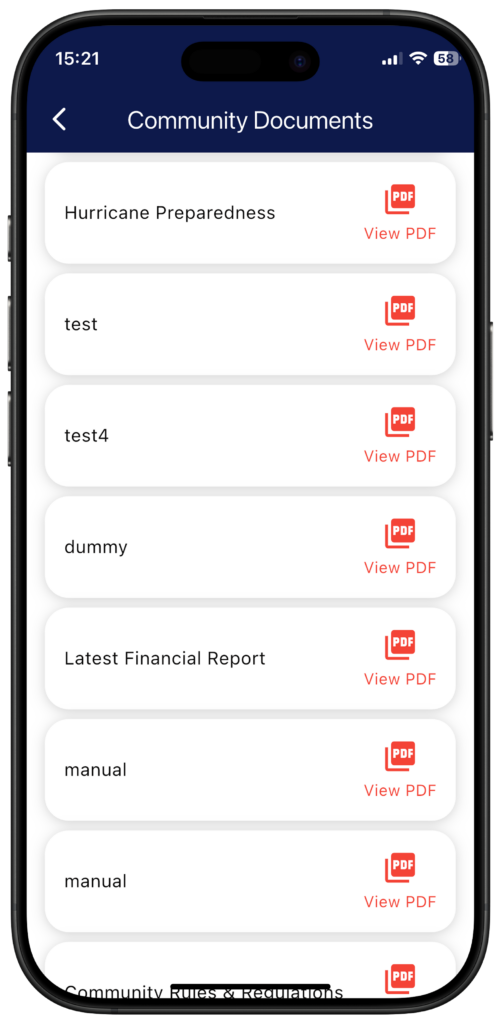
This page displays informational documents, such as minutes from board meetings and ARB applications, provided by your community manager to all residents.
Notification Settings #
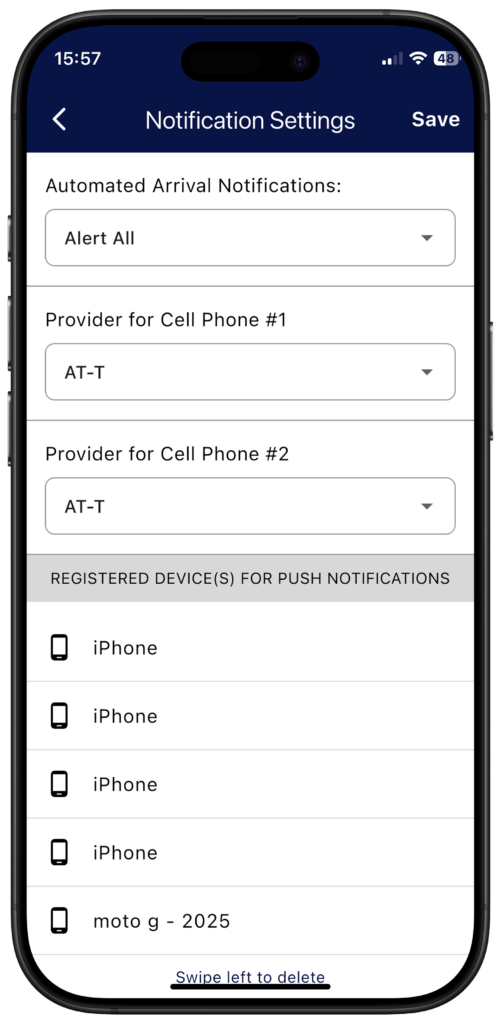
Communities that subscribe to GateAccess.net have the ability to enable Guest Arrival Notifications for the residents. These notifications support increased security as you will be notified when someone is logged to visit your house.
There are three types of supported notifications: push notifications, emails, and text messages. Text message support is an additional community-specific feature. You are strongly encouraged to allow push notifications for the GateAccess app as push notifications are the fastest and most consistent notification method. Emails and texts are subject to provider filters and delivery delays that are outside of ABDi’s control.
PLEASE NOTE: if the entry is NOT logged by the security officer, or if it is logged to a different address (for example, a pool service company who services many homes in the community may be logged elsewhere), then no notification will be sent to you.
Select Alert All to receive notifications for every logged entry. Select Temp Only to receive notifications only for entries of temporary guests. Select No Alert if you do not wish to receive any entry notifications.
If your community provides text message alerts, you must select the cellular provider for the associated phone number.
You can view your notifications by clicking the bell icon at the top of the application.
Login Security Settings #
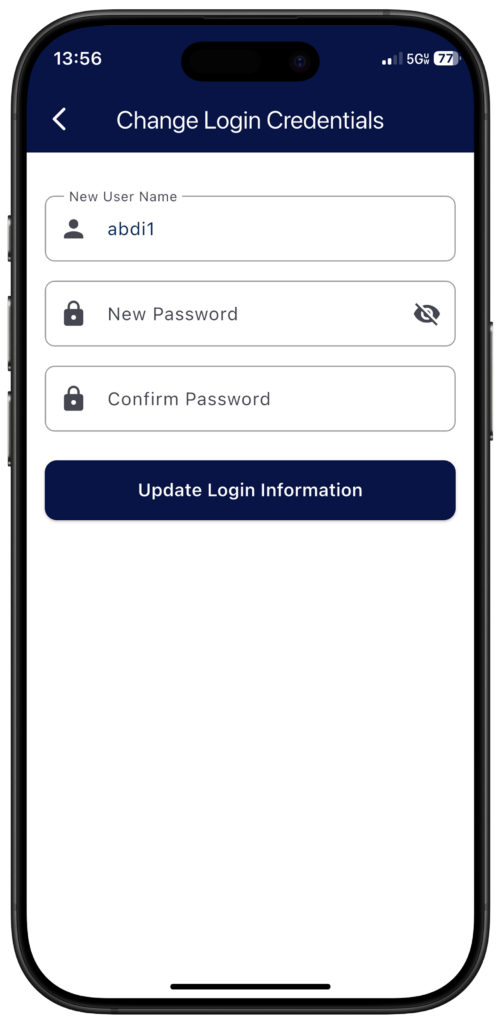
Use the form on this page to change your username and/or password that you use to log in to GateAccess.