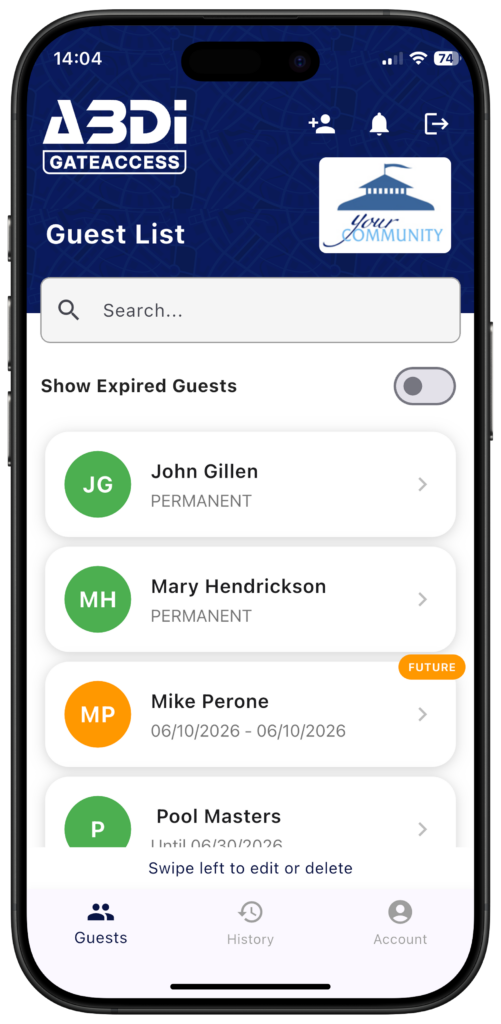
The Guest List #
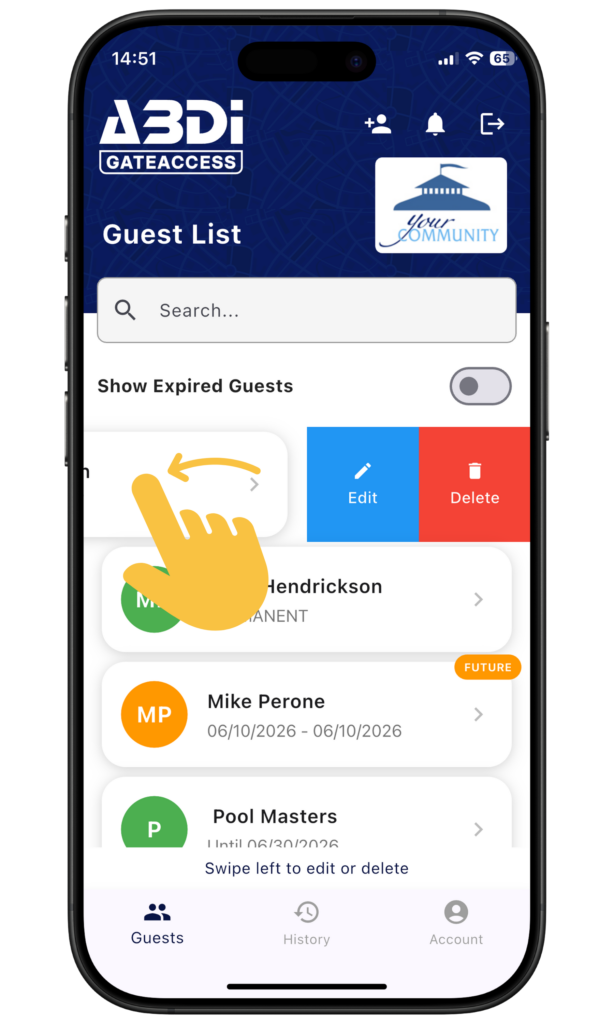
The Guest List page allows you to view and manage your guest list.
There are two types of guests: Permanent (which have no expiration dates), and Temporary (which do have an expiration date).
Expired guests are not shown on this list by default. To view them, slide the Show Expired Guests slider to the ON position.
Adding Guests #
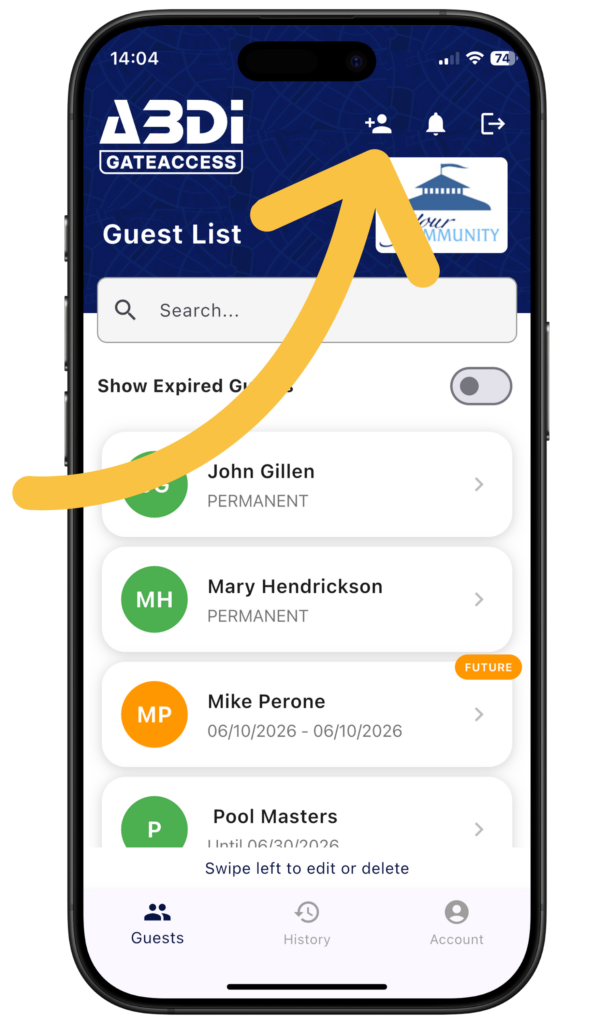
To add a guest, click on the icon in the upper right corner.
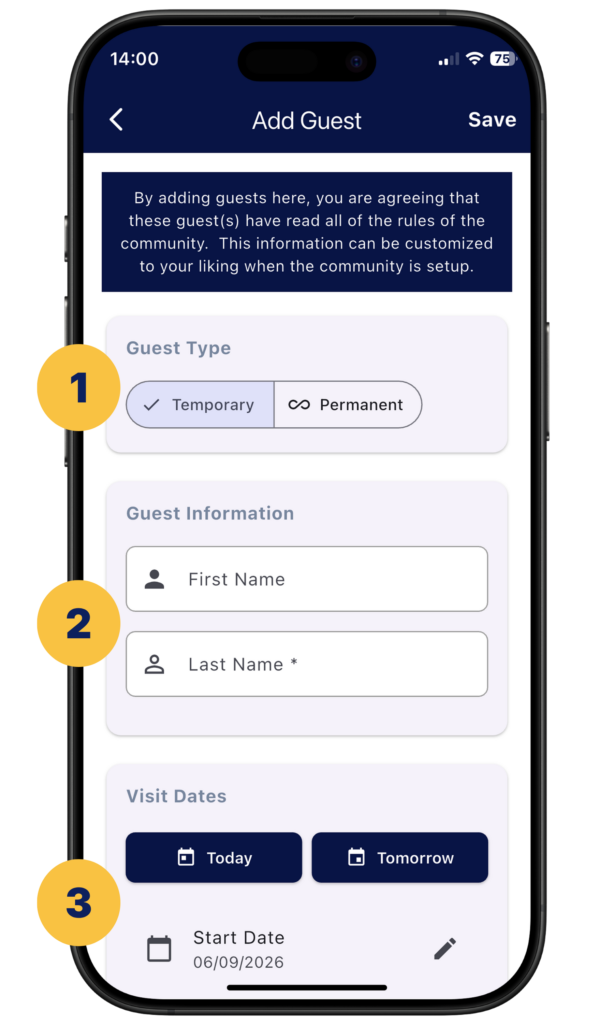
- When adding a guest, first click the appropriate duration for the guest, either Temporary or Permanent.
- Then, enter the first name, last name, and security notes if applicable.
- If the guest is temporary, you may select a quick entry for today or tomorrow, or click and fill out the start and end date on the calendar. Once done, click on Save on the upper right corner
Modify or Delete Guests #
To modify a guest, simply click on the guest’s name on the Guest List.
To delete a guest from the Guest List, swipe the guest tile to the left to reveal the Delete button and click on it.
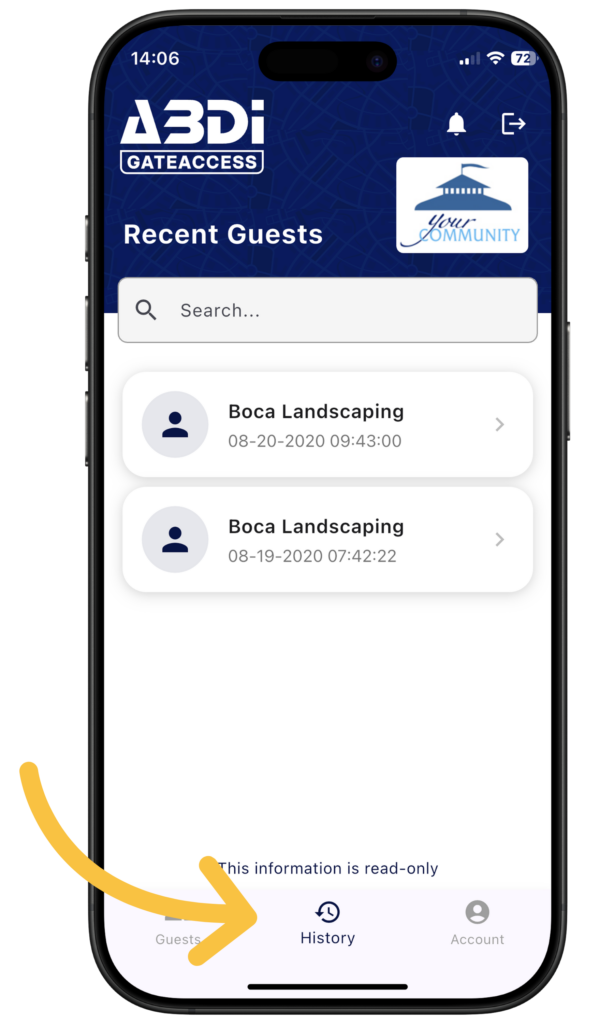
History Page #
The History page displays a read-only log of guests who have visited your address. Tap any entry to view its full details.
If you need an entry removed, please contact your property manager or board of directors, as ABDI is unable to make changes to the History page.